# Customize Flow for mobile
Once you've [integrated Flow for mobile](https://www.checkout.com/docs/payments/accept-payments/accept-a-payment-on-your-mobile-app/get-started-with-flow-for-mobile.md), you can customize the colors, fonts, and borders of the various UI elements to match your application design.
To customize the properties:
1. Create a `designTokens` object and include the color, font, or border keys you want to customize, along with their values. For example:
**Android**
```kotlin
val designTokens = DesignTokens(
colorTokens = ColorTokens(
colorAction = 0XFF00CC2D,
colorBackground = 0xFF17201E,
colorBorder = 0XFF00CC2D,
colorDisabled = 0XFFBBFFB9,
colorPrimary = 0XFFB1B1B1,
colorFormBackground = 0XFF24302D,
colorFormBorder = 0XFFB1B1B1,
colorInverse = 0xFFFFFFFF,
colorOutline = 0XFFB1B1B1,
colorSecondary = 0XFF000000,
colorSuccess = 0XFF00CC2D,
colorError = 0XFFFF0000,
colorScrolledContainer = 0XFFE8E6E6
),
borderRadius = BorderRadius(
all = 20,
),
borderFormRadius = BorderRadius(
all = 20,
),
fonts = mapOf(
FontName.Subheading to Font(
fontStyle = FontStyle.Italic,
fontWeight = FontWeight.ExtraBold,
fontFamily = FontFamily.Monospace,
letterSpacing = 2,
lineHeight = 2,
),
FontName.Input to Font(
fontStyle = FontStyle.Italic,
fontWeight = FontWeight.ExtraBold,
fontFamily = FontFamily.Monospace,
letterSpacing = 2,
lineHeight = 2,
),
FontName.Button to Font(
fontStyle = FontStyle.Italic,
fontWeight = FontWeight.ExtraBold,
fontFamily = FontFamily.SansSerif,
letterSpacing = 2,
lineHeight = 2,
),
FontName.Label to Font(
fontStyle = FontStyle.Normal,
fontWeight = FontWeight.Light,
fontFamily = FontFamily.Cursive,
letterSpacing = 2,
lineHeight = 2,
),
),
)
```
**iOS**
```swift
let colorTokens: CheckoutComponents.ColorTokens = .init(
action: Color(hex: "#FFFF00"),
background: Color(hex: "#17201E"),
border: Color(hex: "#00CC2D"),
disabled: Color(hex: "#BBFFB9"),
error: Color(hex: "#FF0000"),
formBackground: Color(hex: "#24302D"),
formBorder: .white,
inverse: .black,
outline: Color(hex: "#B1B1B1"),
primary: Color(hex: "#B1B1B1"),
secondary: .white,
success: Color(hex: #00856A)
)
let customFont: CheckoutComponents.Font = .init(
font: .custom("HelveticaNeue-Bold", size: 20),
lineHeight: 2,
letterSpacing: 2
)
let designTokens: CheckoutComponents.DesignTokens = .init(
colorTokensMain: colorTokens,
fonts: .init(
button: customFont,
footnote: customFont,
input: customFont,
label: customFont,
subheading: customFont
),
borderButtonRadius: .init(
radius: 5,
corners: [
.topLeft,
.bottomRight]
),
borderFormRadius: .init(
radius: 20,
corners: [
.topLeft,
.topRight]
)
)
```
2. Pass the `designTokens` when you create the configuration instance:
**Android**
```kotlin
val configuration = CheckoutComponentConfiguration(
context = context,
paymentSession = paymentSession,
publicKey = publicKey,
environment = environment,
appearance = designTokens,
)
```
**iOS**
```swift
let configuration = try await CheckoutComponents.Configuration(
paymentSession: paymentSession,
publicKey: publicKey,
environment: environment,
appearance: designTokens,
callbacks: callbacks
)
```
---
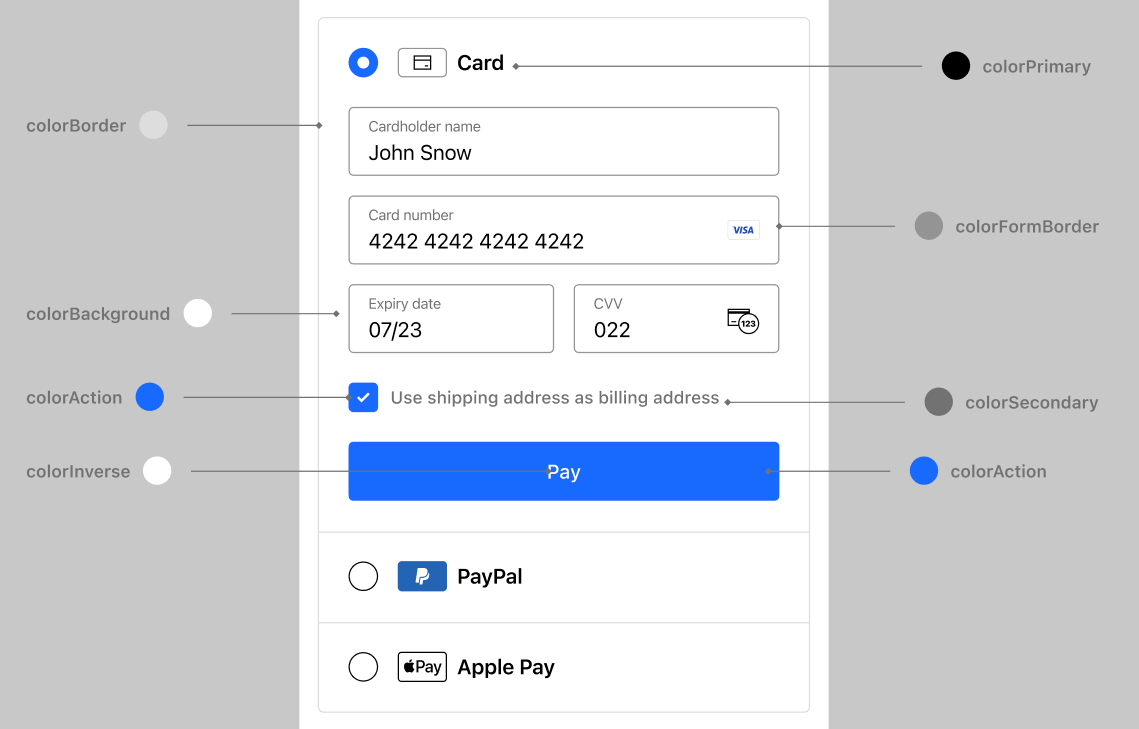
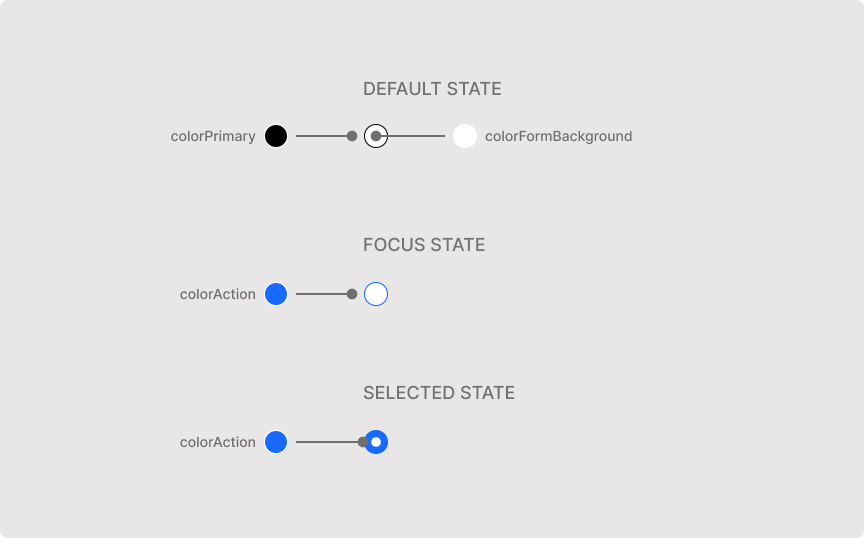
## Color keys
You can customize the color of the following UI elements:
**Main UI**
**Radio element**
**Input field**
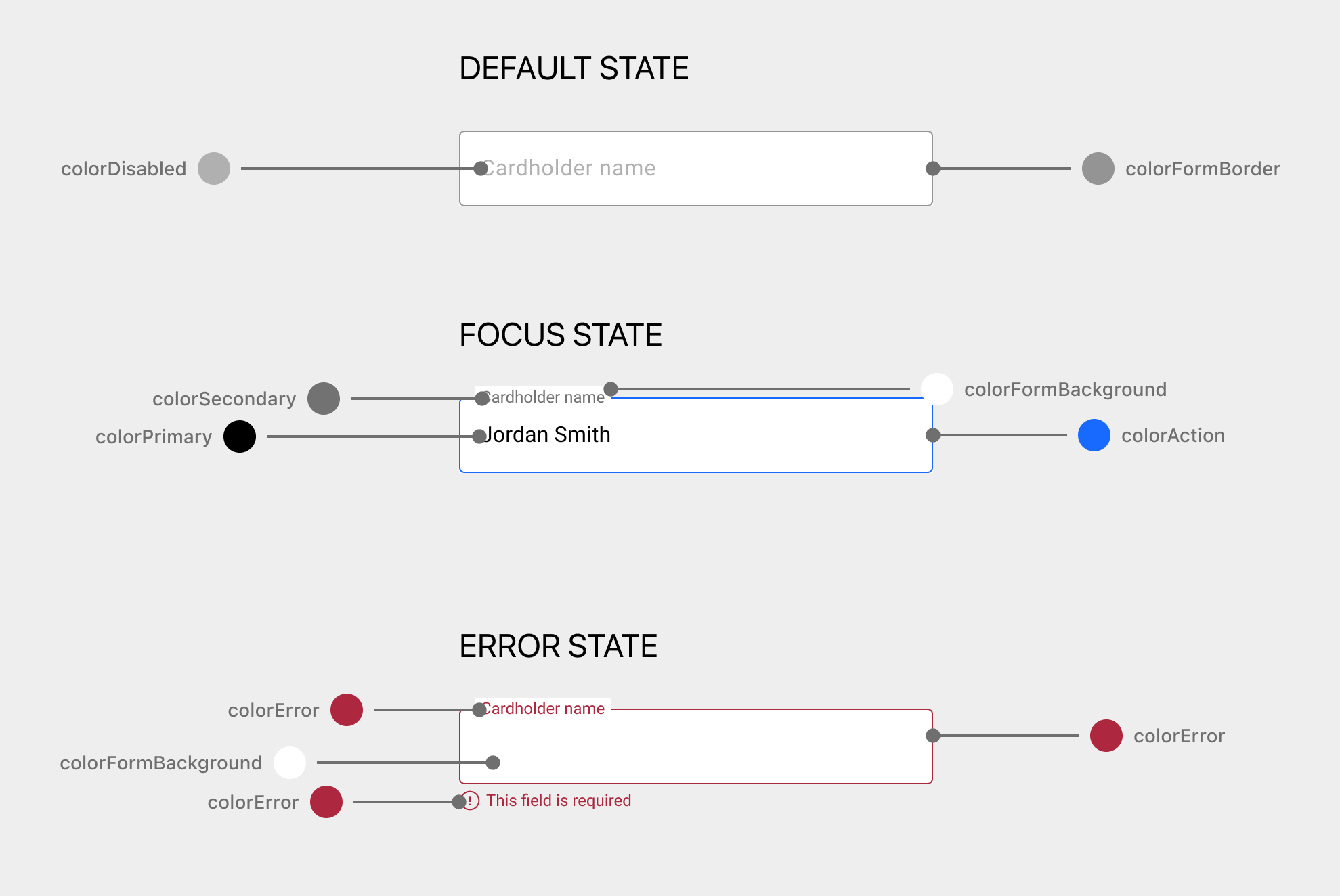
To customize an element, provide a color value to any of the following keys:
**Android**
| Key | Format |
| --- | --- |
| `colorAction` | `0xAARRGGBB` |
| `colorBackground` | `0xAARRGGBB` |
| `colorBorder` | `0xAARRGGBB` |
| `colorDisabled` | `0xAARRGGBB` |
| `colorError` | `0xAARRGGBB` |
| `colorFormBackground` | `0xAARRGGBB` |
| `colorFormBorder` | `0xAARRGGBB` |
| `colorInverse` | `0xAARRGGBB` |
| `colorOutline` | `0xAARRGGBB` |
| `colorPrimary` | `0xAARRGGBB` |
| `colorSecondary` | `0xAARRGGBB` |
| `colorSuccess` | `0xAARRGGBB` |
| `colorScrolledContainer` | `0xFFE8E6E6L` |
**iOS**
| Key | Default value |
| --- | --- |
| `colorAction` | `#186AFF` |
| `colorBackground` | `#FFFFFF` |
| `colorBorder` | `#DDDDDD` |
| `colorDisabled` | `#B0B0B0` |
| `colorError` | `#AD283E` |
| `colorFormBackground` | `#FFFFFF` |
| `colorFormBorder` | `#949494` |
| `colorInverse` | `#FFFFFF` |
| `colorOutline` | `#91B2EE` |
| `colorPrimary` | `#000000` |
| `colorSecondary` | `#727272` |
| `colorSuccess` | `#00856A` |
---
## Font keys
To make Flow for mobile use the same fonts as your web checkout page, use [web fonts](https://developer.mozilla.org/en-US/docs/Learn/CSS/Styling_text/Web_fonts) and set the font family names in the `fontFamily` key.
Use the following properties to modify the fonts for specific UI elements:
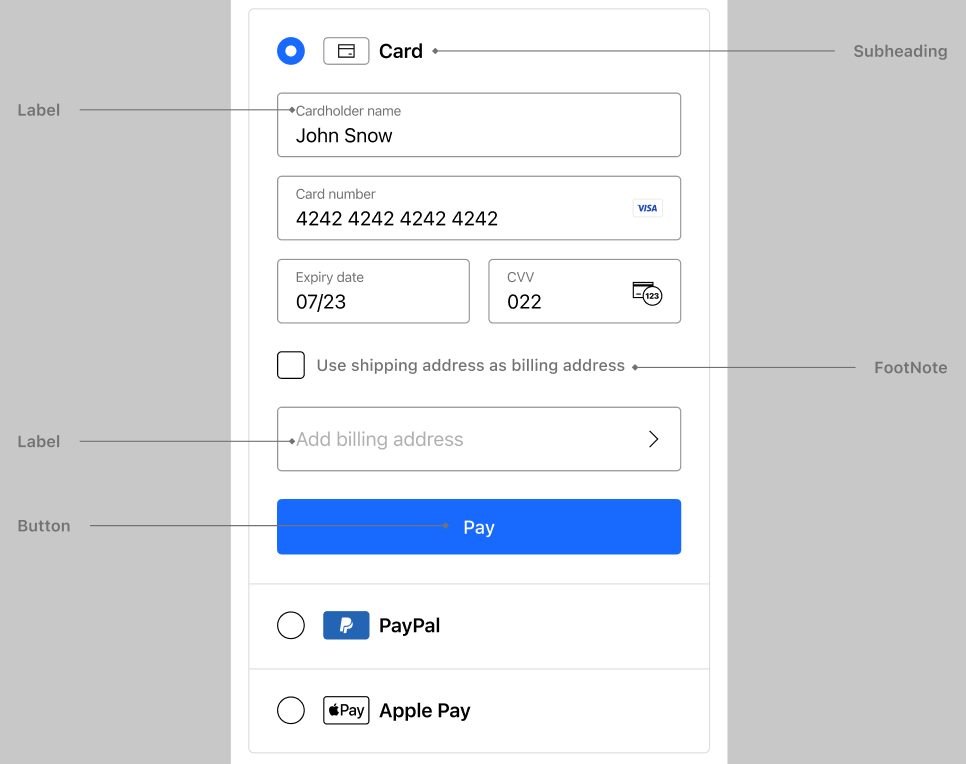
**Android**
| Property | Type |
| --- | --- |
| `button` | `font` |
| `input` | `font` |
| `label` | `font` |
| `footnote` | `font` |
| `subheading` | `font` |
**iOS**
| Property | Default value |
| --- | --- |
| `button` | `CheckoutComponents.Font(font: .body, lineHeight: 8, letterSpacing: 0)` |
| `input` | `CheckoutComponents.Font(font: .body, lineHeight: 4, letterSpacing: 0)` |
| `label` | `CheckoutComponents.Font(font: .body, lineHeight: 6, letterSpacing: 0)` |
| `footnote` | `CheckoutComponents.Font(font: .footnote, lineHeight: 6, letterSpacing: 0)` |
| `subheading` | `CheckoutComponents.Font(font: .subheadline.weight(.semibold), lineHeight: 4, letterSpacing: 0)` |
You can modify the following sub-properties of each font property:
**Android**
| Property | Type | Example |
| --- | --- | --- |
| `fontFamily` | `FontFamily` | - `FontFamily.Monospace`
- `FontFamily.FontFamily.Custom(semiBold = R.font.cko_roboto_semi_bold)` |
| `fontSize` | `Int` | `12` |
| `fontWeight` | `FontWeight` | - `FontWeight.Normal`
- `FontWeight.Medium` |
| `letterSpacing` | `Int?` | `20` |
| `lineHeight` | `Int?` | `20` |
**iOS**
| Property | Type | Example |
| --- | --- | --- |
| `font` | `SwiftUI.Font` | `.custom("HelveticaNeue-Bold", size: 20)` |
| `letterSpacing` | `CGFloat` | `2` |
| `lineHeight` | `CGFloat` | `2` |
> **Information**
>
> To modify the text displayed in the UI, [add a custom translation](https://www.checkout.com/docs/payments/accept-payments/accept-a-payment-on-your-mobile-app/add-localization-to-flow-for-mobile.md#Add_custom_translations). For example, to change the text displayed within the payment button.
---
## Border keys
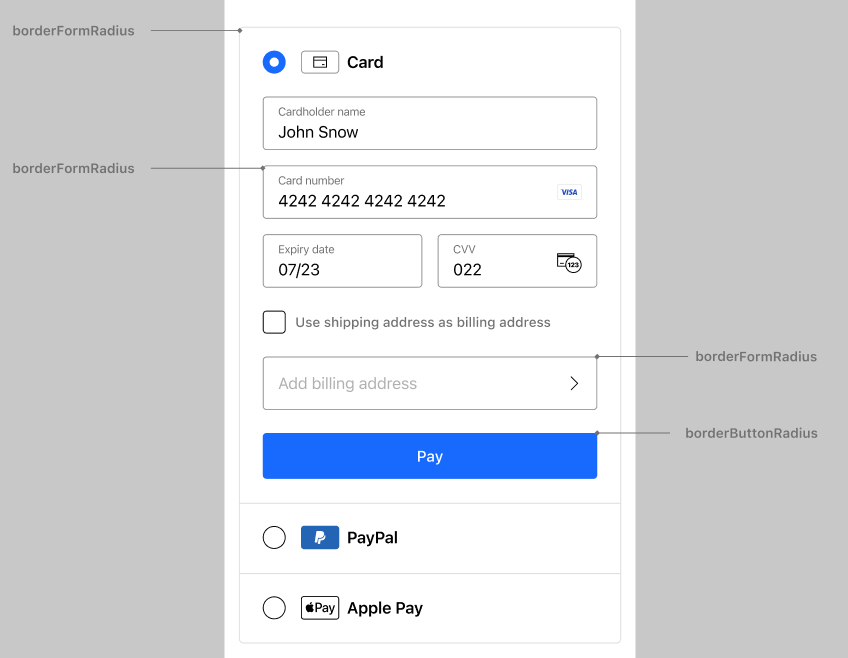
Use the following properties to modify the borders for specific UI elements:
**Android**
| Property | Type | Default value |
| --- | --- | --- |
| `borderFormRadius` | `BorderRadius` | `BorderRadius(all=4)` |
| `borderButtonRadius` | `BorderRadius` | `BorderRadius(all=4)` |
**iOS**
| Property | Type | Default value |
| --- | --- | --- |
| `borderFormRadius` | `BorderRadius` | `.init(radius: 4, corners: .allCorners)` |
| `borderButtonRadius` | `BorderRadius` | `.init(radius: 4, corners: .allCorners)` |
---
## Component options
You can customize options for the individual Flow components using component-specific configuration.
**Android**
```kotlin
/**
* Options for configuring the behavior of a component of a payment method, which overrides the default configuration.
*
* @property showPayButton Specifies whether to display the pay button for this payment method.
* @property callback Callback functions for handling events in the Component.
* @property paymentButtonAction The action to perform when the pay button is tapped.
* @property googlePayConfiguration Configuration for Wallet payment methods.
* @property addressConfiguration Configuration for billing address functionality for card payments.
* @property rememberMeConfiguration Configuration for the Remember Me payment method.
* @property cardConfiguration Configuration for card payment methods.
*/
public data class ComponentOption(
val showPayButton: Boolean? = true,
val callback: ComponentCallback? = null,
val paymentButtonAction: PaymentButtonAction = PaymentButtonAction.PAYMENT,
val googlePayConfiguration: GooglePayConfiguration? = null,
val addressConfiguration: AddressConfiguration? = null,
val rememberMeConfiguration: RememberMeConfiguration? = null,
val cardConfiguration: CardConfiguration? = null,
)
```
| Component key | Description |
| --- | --- |
| `showPayButton` | Specifies whether to display the pay button for this payment method.
Mainly used for card payments. |
| `callback` | Callback functions for handling events in the specific component. |
| `cardConfiguration.acceptedCardSchemes` | The list of accepted card schemes for card payments. This can include one or more of the following:
- `CardSchemeName.AmericanExpress`
- `CardSchemeName.CartesBancaires`
- `CardSchemeName.ChinaUnionPay`
- `CardSchemeName.DinersClubInternational`
- `CardSchemeName.Discover`
- `CardSchemeName.Jaywan`
- `CardSchemeName.JCB`
- `CardSchemeName.Mada`
- `CardSchemeName.Mastercard`
- `CardSchemeName.Visa` |
| `cardConfiguration.acceptedCardTypes` | The list of accepted card types for card payments. This can include one or more of the following:
- `CardTypeName.Charge`
- `CardTypeName.Credit`
- `CardTypeName.Debit`
- `CardTypeName.DeferredDebit`
- `CardTypeName.Prepaid` |
| `cardConfiguration.displayCardholderName` | The position of the cardholder name input field for card payments.
This configuration takes the following values:
- `CardholderNamePosition.TOP` – The input field positions on top of all other fields.
- `CardholderNamePosition.BOTTOM` – The field positions after all other fields.
- `CardholderNamePosition.HIDDEN` – The field is not displayed. |
| `cardConfiguration.cardholderName` | An optional pre-filled cardholder name. Flow uses this value for the payment even when `displayCardholderName` is `CardholderNamePosition.HIDDEN`, and pre-fills the field when it's displayed. Flow sanitizes the value and shortens it to fit within `cardholderNameMaxLength`. If nothing usable remains, Flow ignores the value.
Default – `null` |
| `googlePayConfiguration.acceptedCardSchemes` | The list of accepted card schemes for Google Pay payments, as mapped to the [Google Pay API](https://developers.google.com/pay/api/android/reference/request-objects#CardParameters). This can be one or more of the following:
- `CardSchemeName.AmericanExpress`
- `CardSchemeName.Discover`
- `CardSchemeName.JCB`
- `CardSchemeName.Mastercard`
- `CardSchemeName.Visa` |
| `googlePayConfiguration.acceptedCardTypes` | The list of accepted card types for Google Pay payments, as mapped to the [Google Pay API](https://developers.google.com/pay/api/android/reference/request-objects#CardParameters). This can be one or more of the following:
- `CardTypeName.Credit`
- `CardTypeName.Prepaid` |
| `googlePayConfiguration.buttonTheme` | The visual theme of the Google Pay button, as mapped to the [Google Pay API](https://developers.google.com/pay/api/android/reference/request-objects#ButtonOptions). This can be one of the following:
- `GooglePayButtonTheme.DARK` – White Google Pay logo on a dark background. This is the default.
- `GooglePayButtonTheme.LIGHT` – Dark Google Pay logo on a light background. |
| `googlePayConfiguration.buttonType` | The label displayed on the Google Pay button, as mapped to the [Google Pay API](https://developers.google.com/pay/api/android/reference/request-objects#ButtonOptions). This can be one of the following:
- `GooglePayButtonType.BUY` – _Buy with G Pay_. This is the default.
- `GooglePayButtonType.BOOK` – _Book with G Pay_.
- `GooglePayButtonType.CHECKOUT` – _Checkout with G Pay_.
- `GooglePayButtonType.DONATE` – _Donate with G Pay_.
- `GooglePayButtonType.ORDER` – _Order with G Pay_.
- `GooglePayButtonType.PAY` – _Pay with G Pay_.
- `GooglePayButtonType.PLAIN` – G Pay logo only, with no label.
- `GooglePayButtonType.SUBSCRIBE` – _Subscribe with G Pay_. |
| `paymentButtonAction` | The action to perform when the user selects the pay button.
Mainly used for card payments.
- `PaymentButtonAction.PAYMENT`: When the customer taps the pay button, Flow performs a payment.
- `PaymentButtonAction.TOKENIZE`: When the customer taps the pay button, Flow creates a token from the card details they provided. You can access the token using the `onTokenized()` [method](https://www.checkout.com/docs/payments/accept-payments/accept-a-payment-on-your-mobile-app/flow-for-mobile-library-reference/android/componentcallback.md#onTokenized(TokenDetails)) provided by `ComponentCallback`. |
| `rememberMeConfiguration.acceptedCardSchemes` | The list of accepted card schemes for card payments. This can be one or more of the following:
- `CardSchemeName.AmericanExpress`
- `CardSchemeName.CartesBancaires`
- `CardSchemeName.ChinaUnionPay`
- `CardSchemeName.DinersClubInternational`
- `CardSchemeName.Discover`
- `CardSchemeName.Jaywan`
- `CardSchemeName.JCB`
- `CardSchemeName.Mada`
- `CardSchemeName.Mastercard`
- `CardSchemeName.Visa` |
| `rememberMeConfiguration.acceptedCardTypes` | The list of accepted card types for card payments. This can be one or more of the following:
- `CardTypeName.Charge`
- `CardTypeName.Credit`
- `CardTypeName.Debit`
- `CardTypeName.DeferredDebit`
- `CardTypeName.Prepaid` |
| `rememberMeConfiguration.data` | Pre-filled data for Remember Me.
This configuration supports email address and phone number. |
| `rememberMeConfiguration.showPayButton` | Indicates whether to display the pay button for Remember Me. |
| `addressConfiguration` | Configuration for managing the address collection and handling during the checkout process.
Mainly used for card payments.
- `AddressConfiguration#data`: The pre-filled contact data. This field is optional.
- `AddressConfiguration#fields`: The pre-defined fields to display in the address form. This field is optional.
If not set, the default `billing address` fields are used:
- `AddressField.Country`
- `AddressField.AddressLine1`
- `AddressField.AddressLine2`
- `AddressField.City`
- `AddressField.State`
- `AddressField.Zip`
- `AddressConfiguration#onComplete:` A callback triggered after successfully collecting `ContactData`. |
**iOS**
```swift
/// Card payment method with comprehensive configuration options
///
/// - Parameters:
/// - showPayButton: Controls visibility of the payment button. Defaults to `true`.
/// - paymentButtonAction: Defines the action performed when the payment button is tapped.
/// Can be either `.payment` (tokenization + payment submission) or `.tokenization` (tokenization only).
/// Defaults to `.payment`.
/// - cardConfiguration: Configuration options for customizing the card payment form,
/// including cardholder name field display position, accepted card schemes and accepted card types.
/// - addressConfiguration: Optional configuration for address collection.
/// If provided, enables billing address collection functionality.
/// - rememberMeConfiguration: Optional configuration for Remember Me functionality.
/// If provided, enables users to save their email and phone information for future use.
/// The `showPayButton` property in `RememberMeConfiguration` can override the card's
/// `showPayButton` setting when Remember Me is active.
case card(showPayButton: Bool = true,
paymentButtonAction: PaymentButtonAction = .payment,
cardConfiguration: CardConfigurations = .init(),
addressConfiguration: AddressConfiguration? = nil,
rememberMeConfiguration: RememberMeConfiguration? = nil)
/// Stored Card component with configuration options
///
/// - Parameters:
/// - storedCardConfiguration: Configuration options for customizing the stored card component, including showPayButton.
/// - cardConfiguration: Configuration options for customizing the card payment form,
/// including cardholder name field display position, accepted card schemes and accepted card types.
case storedCard(storedCardConfiguration: StoredCardConfigurations = StoredCardConfigurations(),
cardConfiguration: CardConfigurations = .init())
/// Apple Pay payment method
///
/// - Parameters:
/// - merchantIdentifier: The Apple Pay merchant identifier.
/// - showPayButton: Controls visibility of the payment button. Defaults to `true`.
/// - applePayConfiguration: Configuration options for customizing the Apple Pay component,
/// including the accepted card schemes.
case applePay(merchantIdentifier: String,
showPayButton: Bool = true,
applePayConfiguration: ApplePayConfiguration = .init())
```
| Parameter | Description |
| --- | --- |
| `showPayButton` | Specifies whether to display the pay button for this payment method.
Mainly used for card payments. |
| `CardConfiguration.cardholderNameMaxLength` | Specifies the maximum number of characters allowed in the cardholder name field. |
| `cardConfiguration.displayCardholderName` | The position of the cardholder name input field for card payments.
This configuration takes the following values:
- `DisplayCardHolderName.TOP` – The input field positions on top of all other fields.
- `DisplayCardHolderName.BOTTOM` – The field positions after all other fields.
- `DisplayCardHolderName.HIDDEN` – The field is not displayed. |
| `cardConfiguration.cardholderName` | A pre-filled value for the cardholder name field. Flow includes the value in the token request even when `displayCardholderName` is `DisplayCardHolderName.HIDDEN`, so you can send a fixed cardholder name without asking your customer for it. When the field is displayed, your customer can still edit the value.
Before use, Flow sanitizes the value by removing characters other than letters, spaces, hyphens, and apostrophes (including digits and line breaks), and then shortens it to fit within `cardholderNameMaxLength`. If nothing remains, Flow leaves the field empty.
Default – `nil` |
| `cardConfiguration.displayCvvConfiguration` | Indicates whether to display the CVV configuration on the payment form.
This configuration takes the following values:
- `DisplayCvvConfiguration.SHOW` – Shows the CVV configuration form. This is the default value.
- `DisplayCvvConfiguration.HIDE` – Hides the CVV configuration form. Only use for card payouts. |
| `cardConfiguration.acceptedCardSchemes` | The list of accepted card schemes for card payments. This can include one or more of the following:
- `CardSchemeName.AmericanExpress`
- `CardSchemeName.CartesBancaires`
- `CardSchemeName.ChinaUnionPay`
- `CardSchemeName.DinersClubInternational`
- `CardSchemeName.Discover`
- `CardSchemeName.Jaywan`
- `CardSchemeName.JCB`
- `CardSchemeName.Mada`
- `CardSchemeName.Mastercard`
- `CardSchemeName.Visa` |
| `cardConfiguration.acceptedCardTypes` | The list of accepted card types for card payments. This can include one or more of the following:
- `CardType.Charge`
- `CardType.Credit`
- `CardType.Debit`
- `CardType.DeferredDebit`
- `CardType.Prepaid` |
| `cardConfiguration.hideSecurityCode` | Indicates whether to hide the CVV code field on the card payment form.
When set to `true`, the CVV code is not displayed and the expiry date field takes the full width.
Use only for card payouts. |
| `storedCardConfiguration.showPayButton` | Specifies whether to display the pay button for the stored card component. Defaults to `true`.
Set to `false` to drive submission from your own button through the `onChange` handler. |
| `storedCardConfiguration.captureCVV` | Specifies whether a security code field is shown for the selected stored card. Defaults to `false`. |
| `storedCardConfiguration.displayMode` | Specifies which stored cards to show. This configuration takes the following values:
- `StoredCardDisplayMode.defaultCard` – Displays only the default stored card, falling back to the first stored card when none is marked as default. This is the default value.
- `StoredCardDisplayMode.all` – Displays all of the customer's stored cards, letting the customer choose which one to pay with. |
| `storedCardConfiguration.acceptedCardSchemes` | The list of accepted card schemes for stored card payments. An empty set accepts every scheme. This can include one or more of the following:
- `CardSchemeName.AmericanExpress`
- `CardSchemeName.CartesBancaires`
- `CardSchemeName.ChinaUnionPay`
- `CardSchemeName.DinersClubInternational`
- `CardSchemeName.Discover`
- `CardSchemeName.Jaywan`
- `CardSchemeName.JCB`
- `CardSchemeName.Mada`
- `CardSchemeName.Mastercard`
- `CardSchemeName.Visa` |
| `storedCardConfiguration.acceptedCardTypes` | The list of accepted card types for stored card payments. An empty set accepts every card type. This can include one or more of the following:
- `CardType.Charge`
- `CardType.Credit`
- `CardType.Debit`
- `CardType.DeferredDebit`
- `CardType.Prepaid` |
| `storedCardConfiguration.rememberMeConfiguration` | The Remember Me configuration for sessions that offer both stored cards and Remember Me. Accepts a `RememberMeConfiguration` value and defaults to `nil`.
If your Flow component also includes a card component, keep this as `nil` so Flow uses the card component's Remember Me configuration. For a standalone stored card integration, set this field. When the value is `nil`, Flow uses the card component's configuration if there is one, and otherwise the session's. |
| `applePayConfiguration.acceptedCardTypes` | The list of accepted card types for card payments, as mapped to the [Apple Pay API](https://developer.apple.com/documentation/passkit/pkmerchantcapability). This can include one
or more of the following:
- `CardType.Credit`
- `CardType.Debit` |
| `applePayConfiguration.acceptedCardSchemes` | The list of accepted card schemes for Apple Pay payments, as mapped to the [Apple Pay API](https://developer.apple.com/documentation/passkit/pkpaymentnetwork). This can be one
of the following:
- `CardSchemeName.AmericanExpress`
- `CardSchemeName.CartesBancaires`
- `CardSchemeName.ChinaUnionPay`
- `CardSchemeName.DinersClubInternational`
- `CardSchemeName.Discover`
- `CardSchemeName.Jaywan`
- `CardSchemeName.JCB`
- `CardSchemeName.Mada`
- `CardSchemeName.Mastercard`
- `CardSchemeName.Visa` |
| `applePayConfiguration.buttonStyle` | The visual style of the Apple Pay button, as mapped to the [Apple Pay API](https://developer.apple.com/documentation/passkit/pkpaymentbuttonstyle). This can be one of the following:
- `.dark` – White Apple Pay logo on a black background. This is the default.
- `.white` – Black Apple Pay logo on a white background.
- `.whiteOutline` – Black Apple Pay logo on a white background with a black outline. |
| `applePayConfiguration.buttonType` | The label displayed on the Apple Pay button, as mapped to the [Apple Pay API](https://developer.apple.com/documentation/PassKit/PKPaymentButtonType). This can be one of the following:
- `.plain` – Apple Pay logo only, with no label. This is the default.
- `.buy` – _Buy with Apple Pay_.
- `.setUp` – _Set up Apple Pay_.
- `.inStore` – _Use Apple Pay_ (for in-store payments).
- `.donate` – _Donate with Apple Pay_.
- `.checkout` – _Check out with Apple Pay_.
- `.book` – _Book with Apple Pay_.
- `.subscribe` – _Subscribe with Apple Pay_.
- `.reload` – _Reload with Apple Pay_.
- `.addMoney` – _Add Money with Apple Pay_.
- `.topUp` – _Top Up with Apple Pay_.
- `.order` – _Order with Apple Pay_.
- `.rent` – _Rent with Apple Pay_.
- `.support` – _Support with Apple Pay_.
- `.contribute` – _Contribute with Apple Pay_.
- `.tip` – _Tip with Apple Pay_. |
| `paymentButtonAction` | The action to perform when the user selects the pay button.
Mainly used for card payments.
- `PaymentButtonAction.PAYMENT`: When the customer taps the pay button, Flow performs a payment.
- `PaymentButtonAction.TOKENIZE`: When the customer taps the pay button, Flow creates a token from the card details they provided. You can access the token using the `onTokenized()` [method](https://www.checkout.com/docs/payments/accept-payments/accept-a-payment-on-your-mobile-app/flow-for-mobile-library-reference/ios/componentcallback.md#onTokenized(TokenizationResult)) provided by `ComponentCallback`. |
| `rememberMeConfiguration.data` | Pre-filled data for Remember Me.
This configuration supports email address and phone number. |
| `rememberMeConfiguration.showPayButton` | Indicates whether to display the pay button for Remember Me. |
| `rememberMeConfiguration.acceptedCardSchemes` | The list of accepted card schemes for card payments. This can be one of:
- `CardSchemeName.AmericanExpress`
- `CardSchemeName.CartesBancaires`
- `CardSchemeName.ChinaUnionPay`
- `CardSchemeName.DinersClubInternational`
- `CardSchemeName.Discover`
- `CardSchemeName.Jaywan`
- `CardSchemeName.JCB`
- `CardSchemeName.Mada`
- `CardSchemeName.Mastercard`
- `CardSchemeName.Visa` |
| `cardConfiguration.acceptedCardTypes` | The list of accepted card types for card payments. This can include one or more of the following:
- `CardType.Credit`
- `CardType.Charge`
- `CardType.Debit`
- `CardType.DeferredDebit`
- `CardType.Prepaid` |
| `addressConfiguration` | Configuration for managing the address collection and handling during the checkout process.
Mainly used for card payments.
- `AddressConfiguration#data`: The pre-filled contact data. This field is optional.
- `AddressConfiguration#fields`: The pre-defined fields to display in the address form. This field is optional.
If not set, the default `billing address` fields are used:
- `AddressField.Country`
- `AddressField.AddressLine1`
- `AddressField.AddressLine2`
- `AddressField.City`
- `AddressField.State`
- `AddressField.Zip`
- `AddressConfiguration#onComplete:` A callback triggered after successfully collecting `ContactData`. |
---
## Next steps
**[Flow library reference](https://www.checkout.com/docs/payments/accept-payments/accept-a-payment-on-your-mobile-app/flow-for-mobile-library-reference.md)**
See the configuration options and error handling steps for Flow for mobile.